The Hidden AWS Lambda Hack: 8x Faster Code for 5% Lower Cost
If your AWS Lambda feels slow or unexpectedly expensive, the culprit might not be your code, it could be your memory setting!
If your AWS Lambda feels slow or unexpectedly expensive, the culprit might not be your code, it could be your memory setting!
When getting started with AWS it is easy to miss the relationship between memory and computational power when using Lambda. This can however make a huge difference for both your performance and bill.

I remember creating my first Lambda and picking the default 128 MB of memory without considering the implications, thinking that this will be a safe bet since our application did not need a lot of memory. This turned out to be costly..
During creation you are not able to set a desired CPU, instead AWS will allocate an appropriate CPU configuration based on the memory allocation. According to this AWS documentation the sweet spot seems to be by using 1769 MB as this grants you a full vCPU.
In this article we will not make any assumption, after covering the pricing model we will do an experiment on a compute heavy operation to see how memory allocation impacts performance and cost.
Understanding the pricing model
The Lambda pricing formula (eu-central-1) is currently:
Cost = (Billed Duration in seconds) × (Memory in GB) × $0.0000166667
This means that you will be charged for the duration of the execution times the allocated memory times a flat rate.
Comparing configurations
For this experiment, I am using a CPU-intensive workload that performs
1 million SHA256 cryptographic hash operations using .NET 8.
This represents a compute heavy task where additional CPU power directly improves performance.
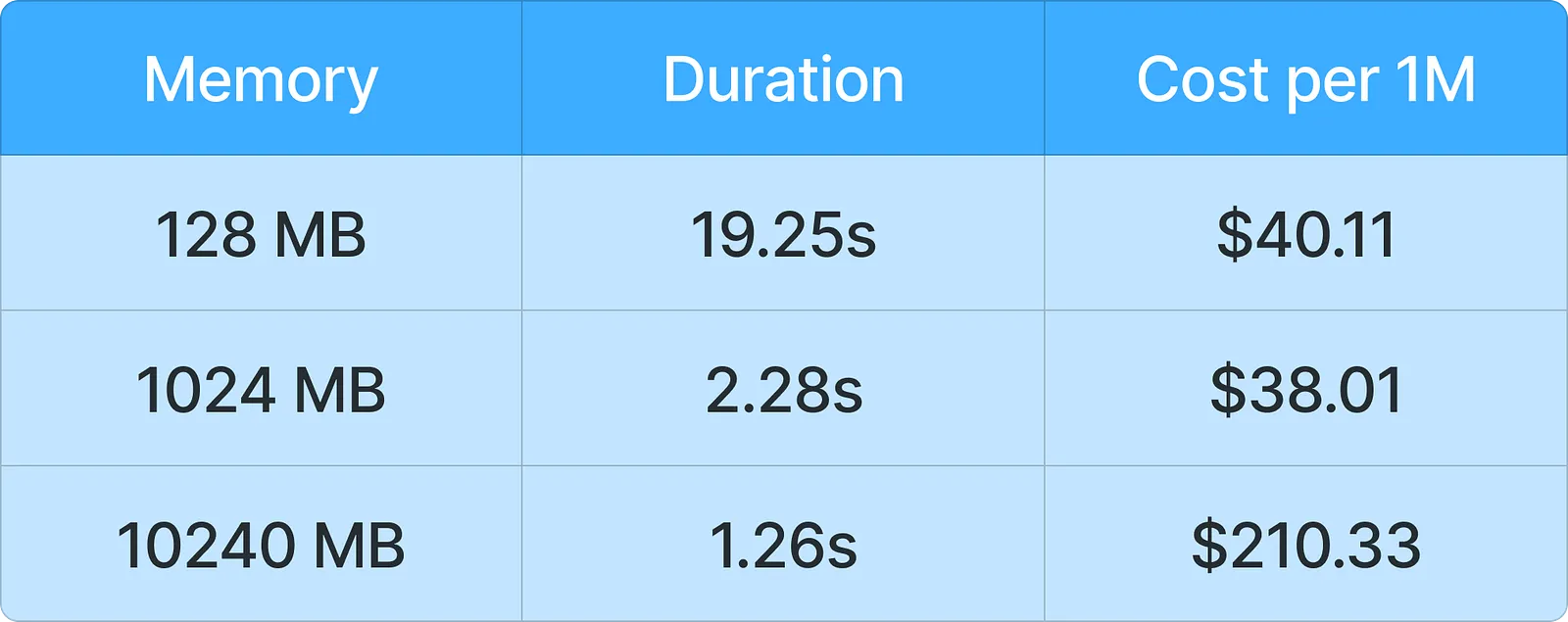
We will be looking at the result of three different scenarios, running the same code but with different memory configurations.
**drum roll…**
128 MB
Billed Duration: 19,255 ms = 19.255 seconds
Memory: 128 MB = 0.125 GB
Cost = 19.255 × 0.125 × 0.0000166667
Cost = $0.00004011 per invocation
Cost per 1M invocations = $40.11
1024 MB
Billed Duration: 2,281 ms = 2.281 seconds
Memory: 1024 MB = 1.0 GB
Cost = 2.281 × 1.0 × 0.0000166667
Cost = $0.00003801 per invocation
Cost per 1M invocations = $38.01
10240 MB
Billed Duration: 1,262 ms = 1.26 seconds
Memory: 10240 MB = 10 GB
Cost = 1.262 × 10 × 0.0000166667
Cost = $0.000210333754 per invocation
Cost per 1M invocations = $210.33
Conclusion
Using 1024 MB instead of 128 MB resulted in 8x better performance at a 5% lower price, not bad right!
Note that this is performed on a compute heavy workload, for other operations such as I/O operations where you are waiting for a file, database or API you might not see the same results.
Key learnings
- The default configuration of 128 MB is rarely optimal for CPU intensive workloads.
- For compute intensive tasks, 1–2GB is often the sweet spot, better performance at lower cost!
- You will see diminishing returns appear after 2GB, especially for single-threaded workloads.
- This optimization primarily concerns compute heavy workloads.
AWS Lambda Power Tuning Tool
Check out this open source tool that helps you analyse your production workload to get an optimized recommendation
Code reference
Simple compute heavy operation in .NET provided by Claude Code! Note that this is a single threaded operation.
using Amazon.Lambda.Core;
using System.Security.Cryptography;
using System.Text;
using System.Text.Json;
using System.Diagnostics;

// Assembly attribute to enable the Lambda function's JSON input to be converted into a .NET class.
[assembly: LambdaSerializer(typeof(Amazon.Lambda.Serialization.SystemTextJson.DefaultLambdaJsonSerializer))]

namespace Lambda;

public class Function
{
    public Response FunctionHandler(Request input, ILambdaContext context)
    {
        var stopwatch = Stopwatch.StartNew();

        context.Logger.LogInformation($"Starting computation with {input.Iterations} iterations");
        context.Logger.LogInformation($"Memory Limit: {context.MemoryLimitInMB} MB");

        // CPU-intensive work to demonstrate memory/CPU relationship
        var result = PerformCpuIntensiveWork(input.Iterations);

        stopwatch.Stop();

        var response = new Response
        {
            Message = "Computation complete",
            Iterations = input.Iterations,
            Result = result,
            ExecutionTimeMs = stopwatch.ElapsedMilliseconds,
            MemoryLimitMB = context.MemoryLimitInMB,
            RequestId = context.AwsRequestId
        };

        context.Logger.LogInformation($"Execution completed in {stopwatch.ElapsedMilliseconds}ms");
        context.Logger.LogInformation($"Response: {JsonSerializer.Serialize(response)}");

        return response;
    }

    private long PerformCpuIntensiveWork(int iterations)
    {
        long hashSum = 0;

        // Perform SHA256 hashing - CPU intensive operation
        using var sha256 = SHA256.Create();
        for (var i = 0; i < iterations; i++)
        {
            var inputBytes = Encoding.UTF8.GetBytes($"iteration-{i}");
            var hashBytes = sha256.ComputeHash(inputBytes);

            // Sum first 8 bytes as a long to prevent compiler optimization
            hashSum += BitConverter.ToInt64(hashBytes, 0);

            // Add some additional computation
            if (i % 1000 == 0)
            {
                hashSum ^= i;
            }
        }

        return hashSum;
    }
}

public class Request
{
    public int Iterations { get; set; } = 1000000;
}

public class Response
{
    public string Message { get; set; } = string.Empty;
    public int Iterations { get; set; }
    public long Result { get; set; }
    public long ExecutionTimeMs { get; set; }
    public int MemoryLimitMB { get; set; }
    public string RequestId { get; set; } = string.Empty;
}
AWS Config
{
  "Information": [
    "This file provides default values for the deployment wizard inside Visual Studio and the AWS Lambda commands added to the .NET Core CLI.",
    "To learn more about the Lambda commands with the .NET Core CLI execute the following command at the command line in the project root directory.",
    "dotnet lambda help",
    "All the command line options for the Lambda command can be specified in this file."
  ],
  "profile": "",
  "region": "",
  "configuration": "Release",
  "s3-prefix": "Lambda/",
  "template": "serverless.template",
  "template-parameters": "",
  "function-memory-size": 10240,
  "function-timeout": 30,
  "function-handler": "Lambda::Lambda.Function::FunctionHandler",
  "function-runtime": "dotnet8"
}