Improve your days with Jira automations
Tired of moving Jira issues manually? No worries, we can automate it!
Tired of moving Jira issues manually? No worries, we can automate it!
Manually moving Jira issues, writing release reports or finding a high priority bug hidden in the backlog, might not be your favorite part of the day. Fortunately there is a solution.
In this article, we will focus on Jira and how to automate parts of your development process. By the end, you’ll have the tools to:
- Avoid manually moving tickets
- Receive notifications whenever a bug is reported
- Publish information regarding releases in your organization’s preferred communication channel
Connecting Jira with GitHub
To get started you will need to connect Jira with your preferred version control system, in this example we will use GitHub.
Start with opening an issue in Jira, and press “Integrate source code”. Jira has a user friendly wizard which will guide you through the integration.
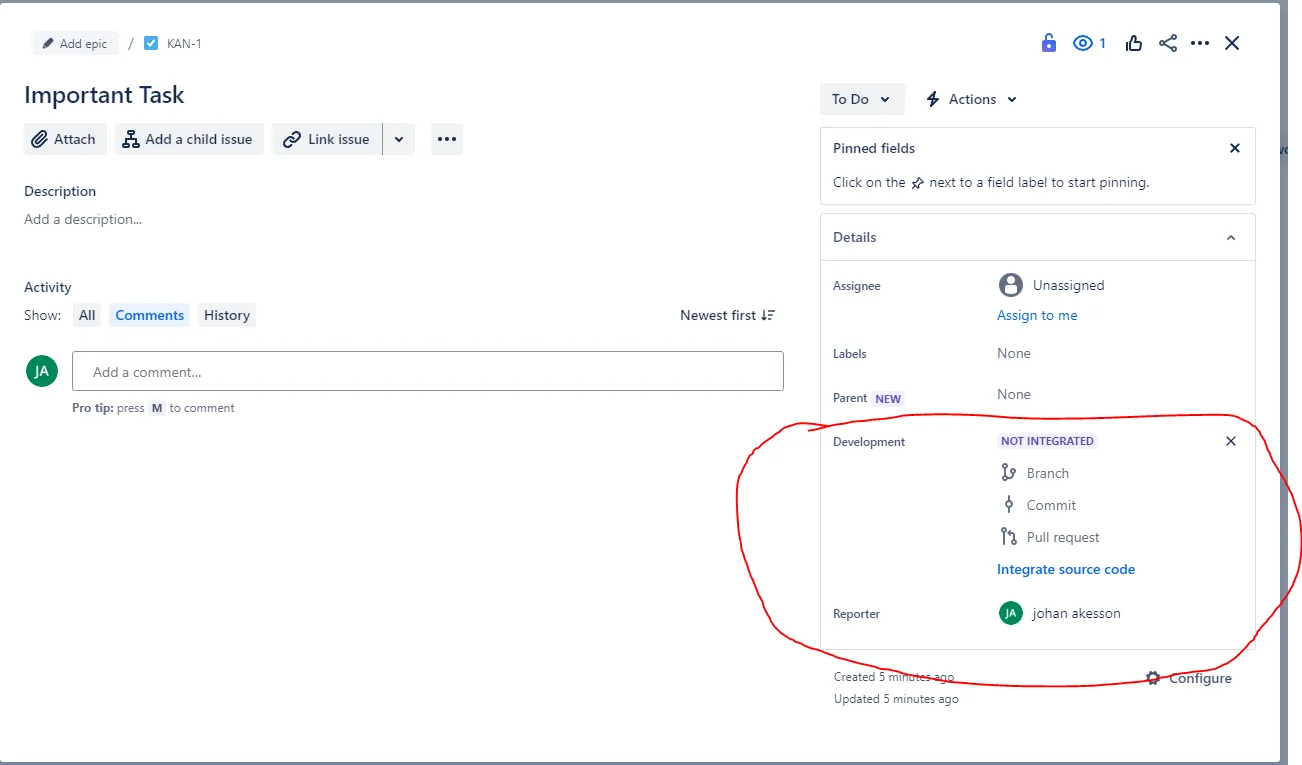
Connecting Jira with GitHub
Once you finished the configuration, you should be able to create branches from the issue in Jira.
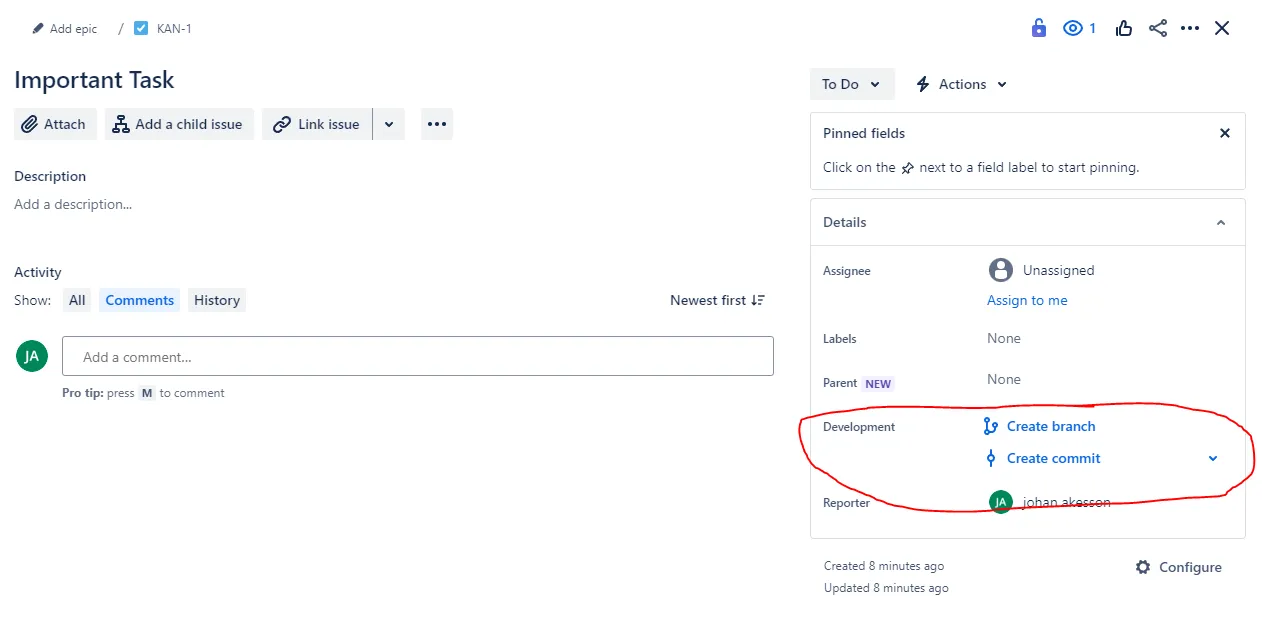
Creating a branch from Jira
When working with branches, you can either choose to create branches directly from Jira, or you can create them yourself and follow the naming convention of Issue-Id-Your-Own-Text.
In my example, my branch is named: “KAN-1-Important-Task”, as KAN is my Jira key, and 1 is my issue number.
If you fail to follow the naming convention, Jira will not register any changes and you will be back to manual.
Automate Jira transitions
Now the communication between Jira and GitHub is up and running, so let’s make sure that we never have to manually move a ticket again.
In my simple board, I only have three columns: “To Do”, “In Progress” and “Done”.
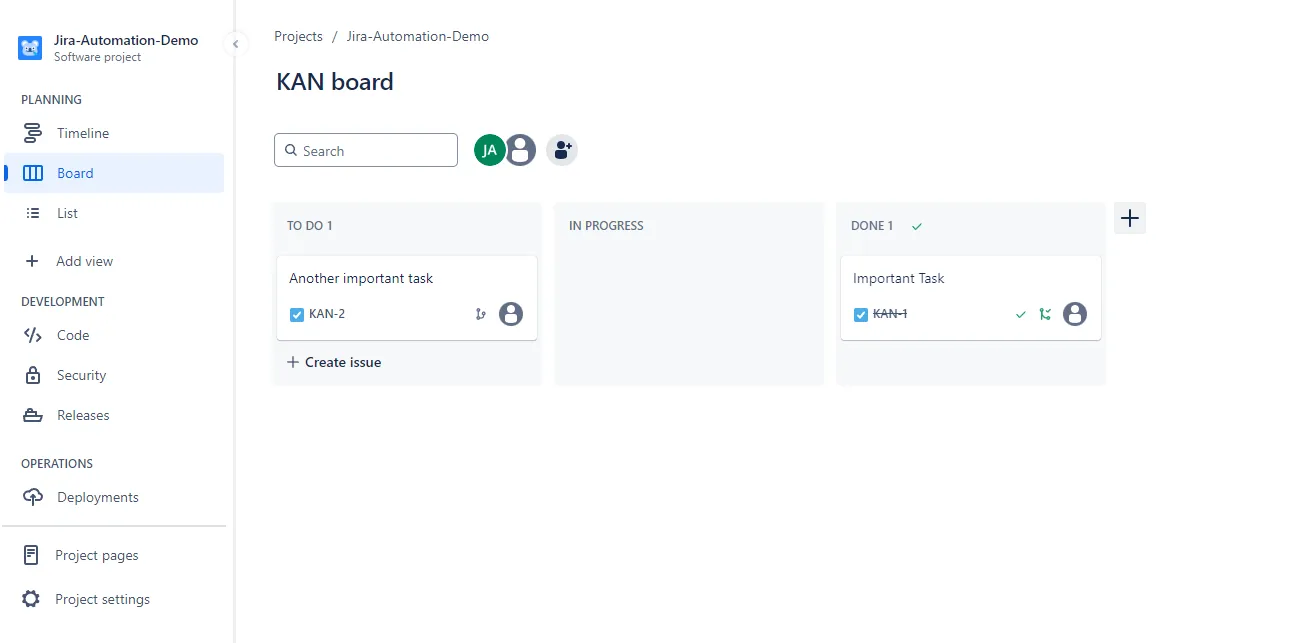
Simple Jira Board
Whenever I create my feature branch, I would like the Jira issue to be moved to “In Progress”.
Go to “Project Settings” in the bottom left corner and choose “Automations” and create the automation below:
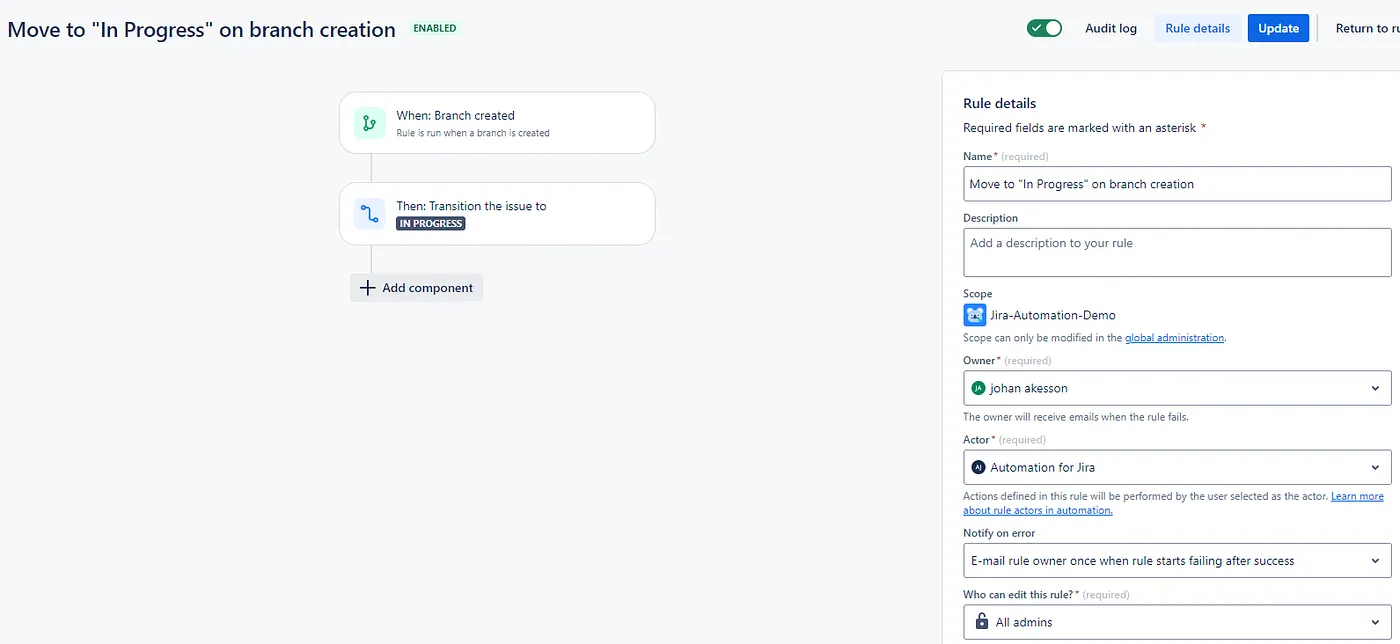
Automation 1
Now when I create a branch, Jira will automatically move my issue to “In Progress”
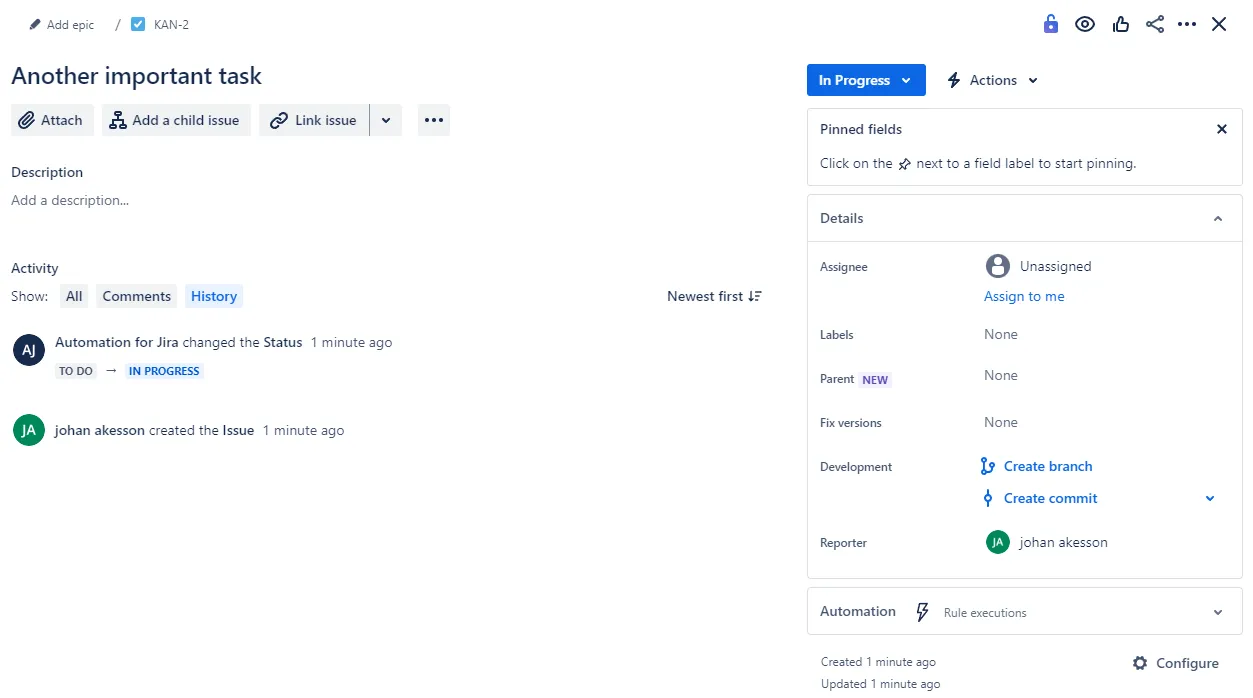
Issue “In Progress”
Rinse and repeat the process for merges to your main branch, and you got a fully automated flow:
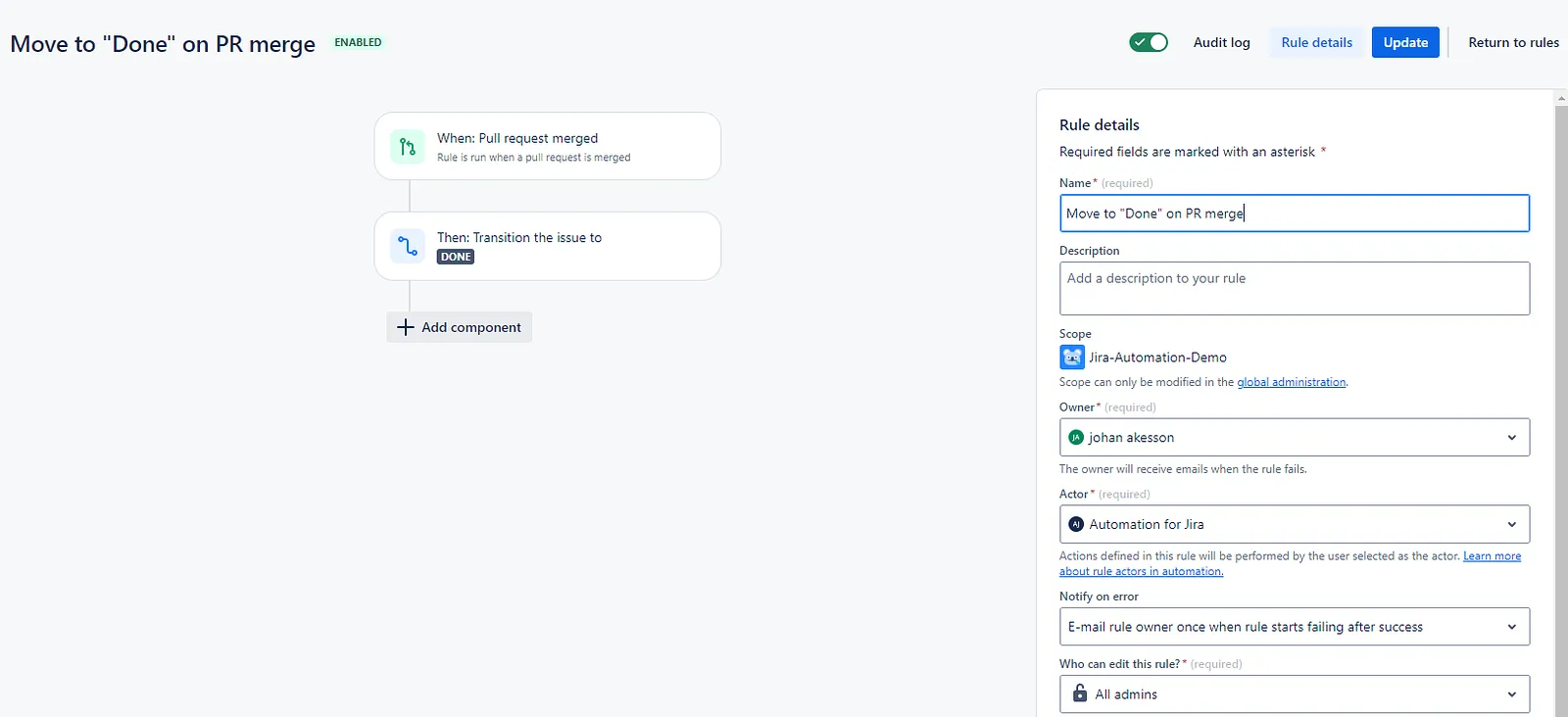
Automation 2
Improve communication and transparency with chat messages
It’s important that the team and stakeholders are aware when changes are published, new bugs are reported and when it’s time to celebrate a great release.
Jira offers out of the box integrations to communication channels such as Slack and Teams, but also supports sending HTTP requests if your organisation is using another tool.
In this example, we will create a chat notification that lets users in a Slack channel know whenever a task has been finalized.
Just as previously, we will create an automation:
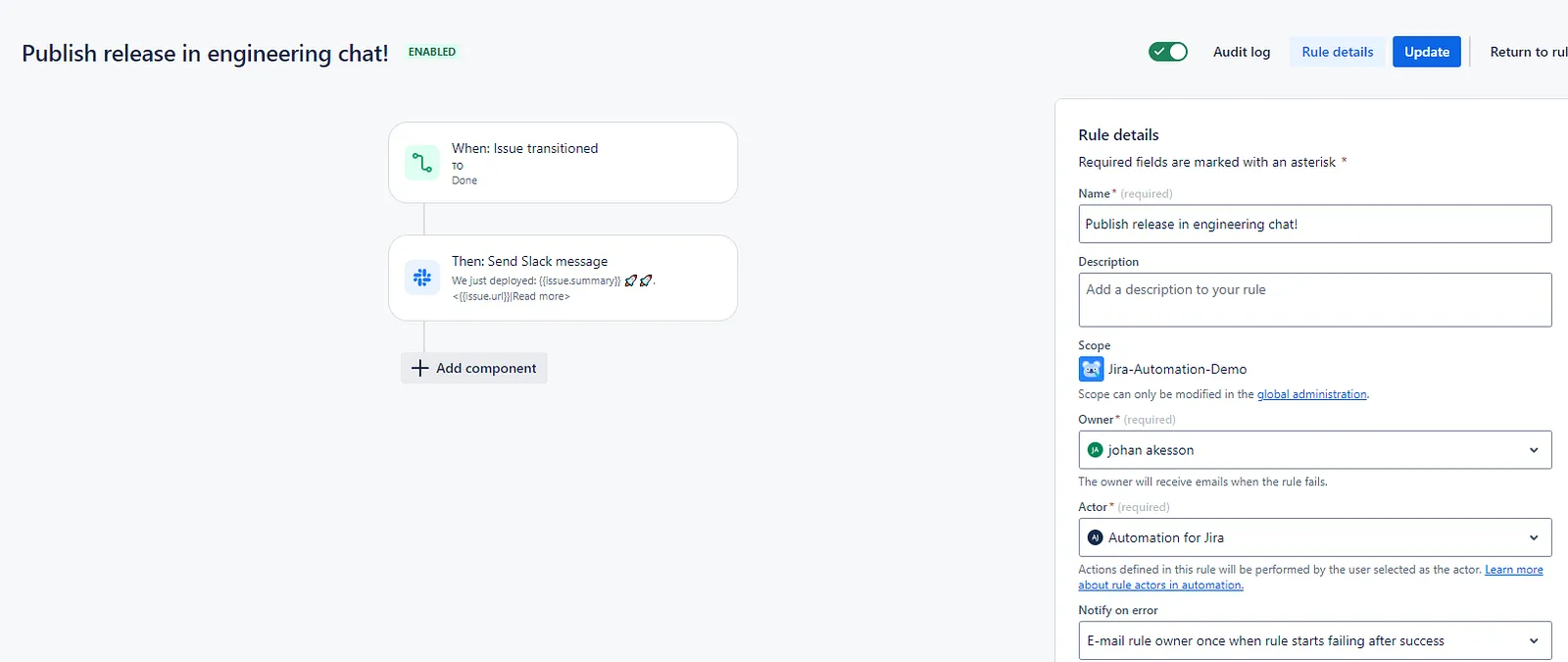
Automation 3
And voilá, we are getting a fun message when the issue is moved to “Done”.
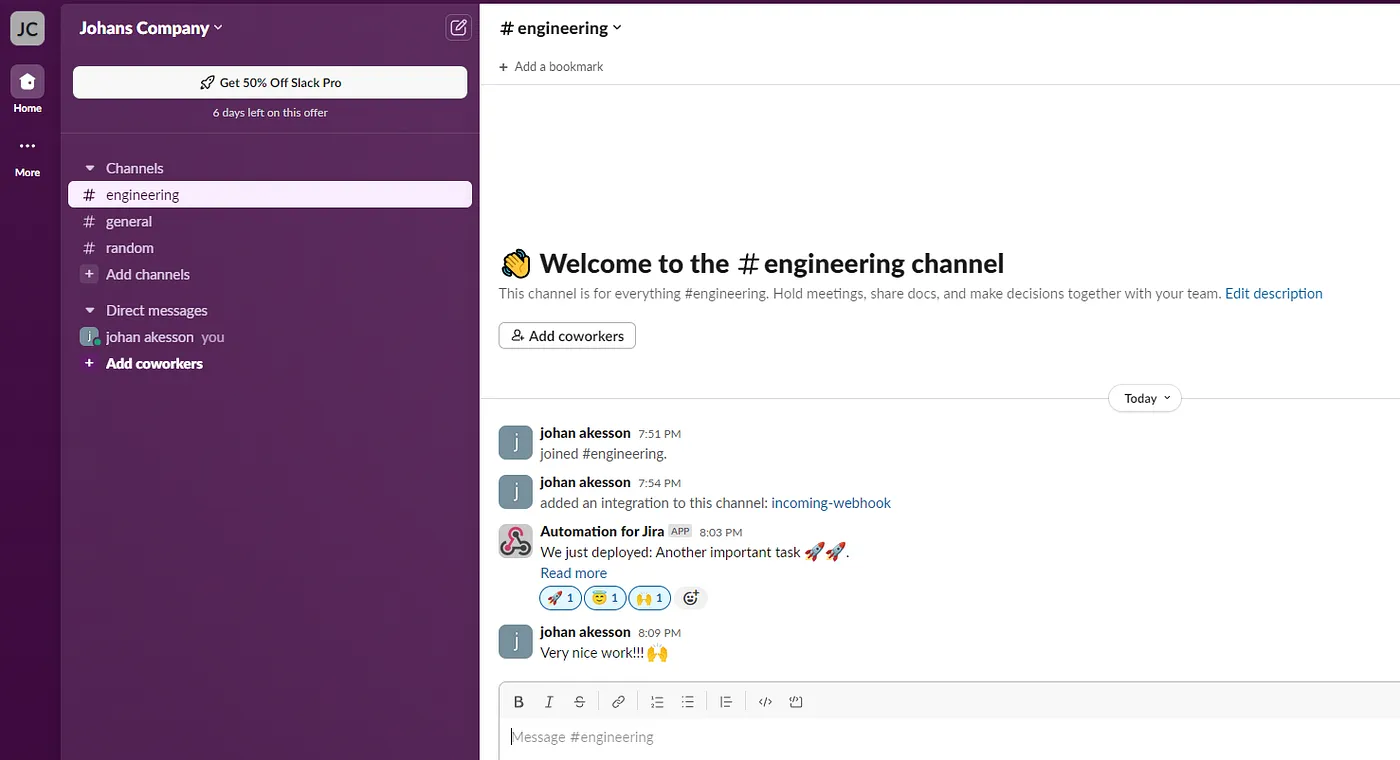
Automated Slack message
This process can be replicated with any issue type and stage of your board. You could for instance publish a chat message when a bug is created, stating the error and priority.
Thus allowing your team to collaborate in Slack, and keeping interested parties, such as the reported, up to date on the issue.
Closing words
The sky’s the limit when it comes to automations, but they can be helpful to create transparency both within the team but also to any external stakeholder.
Further they can be a great cultural booster, giving credit to teams that have released new features or create transparency of how many deliveries are actually made.
I hope to have sparked your interest, and feel free to share your best Jira automations in the comments!